Combine multiple table images into one Excel sheet
Add the images to Image to Excel, check each table and choose Combine into one sheet when you download. Rows are appended in image order. You can also put each image on its own sheet.
Choose your table imagesExample: two sales tables, one spreadsheet
These fictional example tables have the same column headings. Coffee mug appears in both months: the combined file keeps both records. It does not add their quantities together.
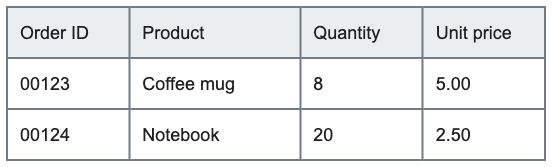
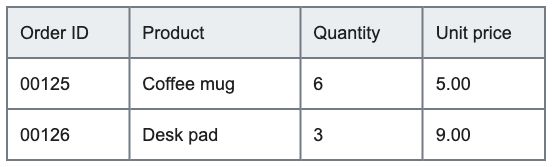
Download the Excel generated from these two images. The optional source columns show the image name and original row. Review the downloadable examples before using them as a template.
| Order ID | Product | Quantity | Unit price | Source image | Source row |
|---|---|---|---|---|---|
| 00123 | Coffee mug | 8 | 5 | january-sales.jpg | 2 |
| 00124 | Notebook | 20 | 2.5 | january-sales.jpg | 3 |
| 00125 | Coffee mug | 6 | 5 | february-sales.jpg | 2 |
| 00126 | Desk pad | 3 | 9 | february-sales.jpg | 3 |
How to combine your images
- Open the converter and choose your JPG or PNG files. Up to 10 images per batch, 10 MB each and 30 MB in total.
- Use the image tabs to compare every result with its original. Edit cells where needed and check important numbers, decimal points and column alignment.
- Keep First row is a header selected if each image starts with column headings. To combine tables, their headings and column order must match.
- In Export options, choose Combine into one sheet. Select Include source image and row if you need to trace records.
- Click Download Excel. The original image files remain unchanged.
One sheet or a separate sheet for each image?
Use one combined sheet for matching lists such as monthly sales records. Choose One sheet per image for unrelated tables or tables with different headings. Combined mode keeps repeated items and duplicate rows; it does not deduplicate, group products or calculate totals.
Check order numbers and uncertain cells
Use Keep as text for order IDs and codes. This keeps values such as 00123 from turning into 123 during export. Yellow cells need review, and unmarked cells can also contain mistakes. Comparing the result against the original is part of the workflow.
Which inputs are supported?
Clear screenshots of simple tables with printed English text and numbers work best. Handwriting, receipts, complex nested headings and other languages are outside the current supported scope. Take a new picture if text is blurred, cropped or covered by glare. Your image content is processed on your device.
Convert your table screenshots to Excel →
Example data, not customer records. Both input images and every exported cell were checked for this example. Always review your own results.